01
Before you begin: what is free
- 1Prepare Chrome or Edge, the v1.2.5 ZIP, and your website name, email, full URL, description and keywords. Extract the ZIP before installing.
- 2All local features are free without an account: multiple profiles, import/export, copying, assisted filling and bring-your-own-key AI comments. Your AI provider may charge separately.
- 3Only website opportunity syncing requires an account. Install and configure profiles first, then connect if needed. Website plans do not limit local features or AI generation counts.
02
Install: from ZIP to sidebar
- 1Download v1.2.5 from this page and extract it to a permanent folder. Select the folder directly containing manifest.json, not its parent.
- 2Open chrome://extensions/ (edge://extensions/ in Edge), enable Developer mode, choose Load unpacked, and select that folder.
- 3Verify Backlink Helper version 1.2.5 on the extension card. Use the browser puzzle icon to pin it to the toolbar. Keep the loaded folder in place.
03
Upgrade without uninstalling
- 1Before upgrading, export website data in Settings and keep the JSON backup. Profile exports do not include your AI key or account connection; store your key securely elsewhere.
- 2Close extension editors, overwrite the original loaded folder with the new files, then click Reload on the extension card. Do not remove or uninstall the extension.
- 3Verify version 1.2.5, refresh the target website and reopen the sidebar. Check profiles, AI settings and connection. A different folder/extension ID may require importing profiles, re-entering your key and reconnecting.
04
First launch and navigation
- 1Open a normal HTTPS page and click Backlink Helper in the toolbar to open its sidebar. Browser-internal pages and extension stores are unsuitable for reading or filling tests.
- 2Disconnected status does not block local tools. Start with one profile and a manually written comment, try copying it, then add AI and resource syncing when needed.
05
Settings and its two tabs
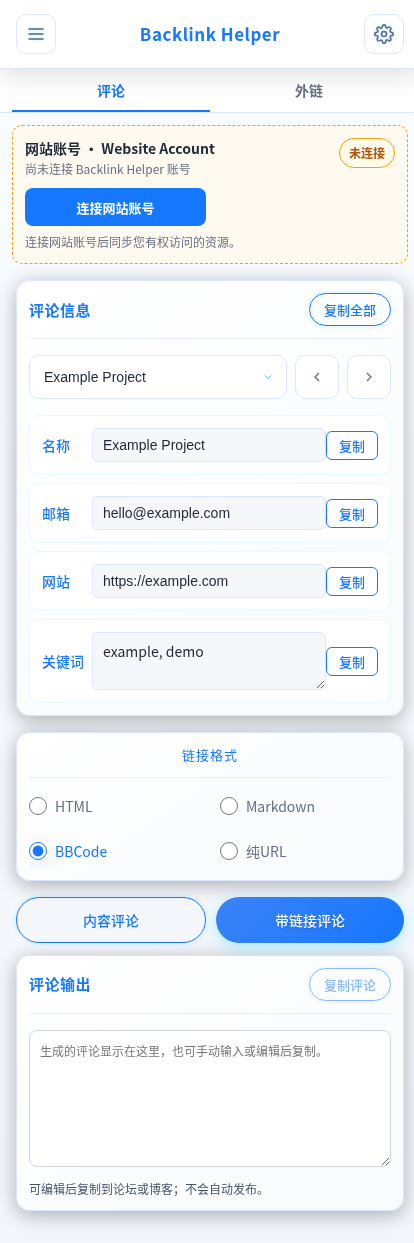
- 1Use Comments for profiles, drafting and copying; use Backlinks for searching, pagination and opening resources. The gear opens Settings, with two v1.2.5 tabs: Site comments and Model connection.
06
Website profiles and live local sync
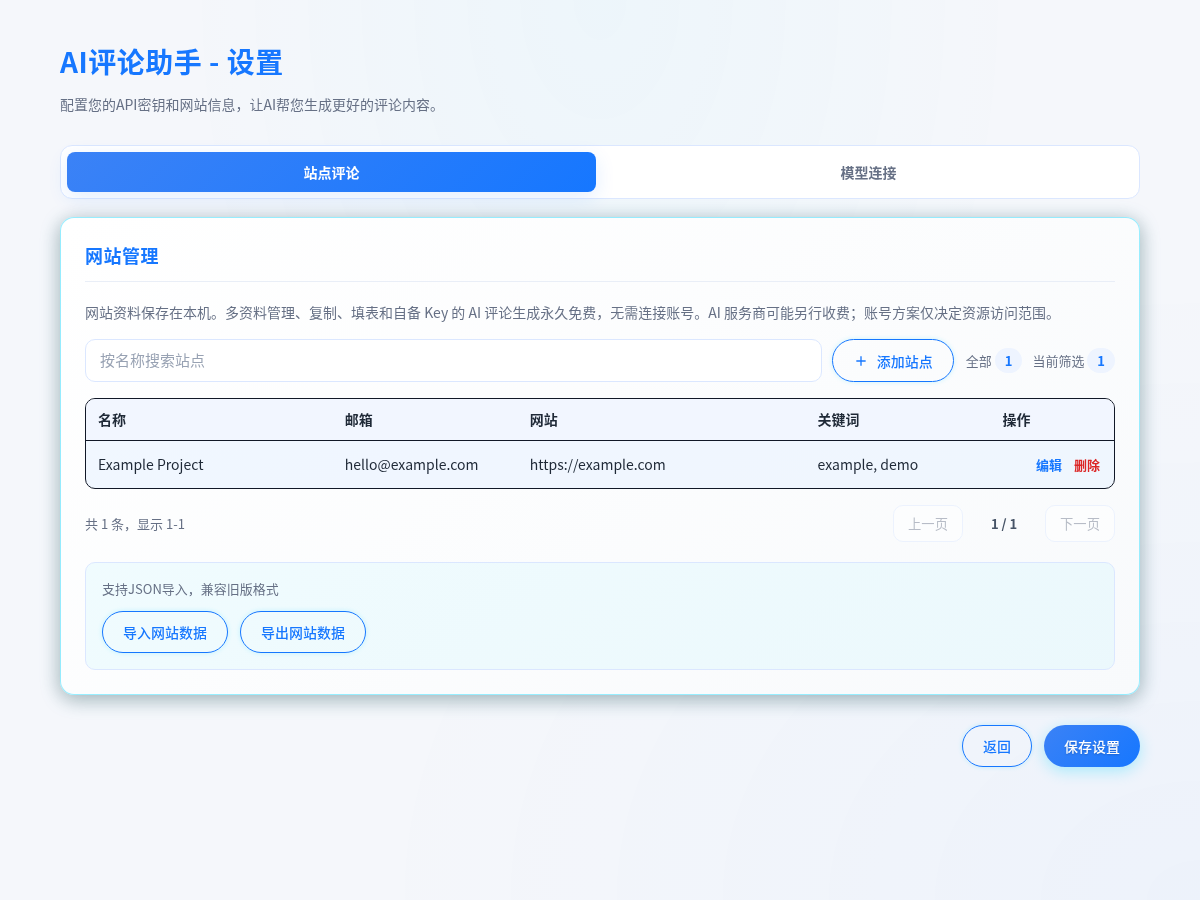
- 1In Settings → Site comments, add a website. Name is the comment identity; email is for contact forms; URL must start with https:// or http://. Add a useful description and comma-separated keywords, then save the website.
- 2Search profiles by name, email, URL or keywords; edit or delete from the table. Confirm the correct profile before deleting. Multiple profiles are free; Free is not limited to one profile.
- 3Select a profile using the dropdown or previous/next arrows. Edit name, email, URL and keywords in the sidebar. Saved changes sync between Settings and sidebar in the same browser—not to the website or across devices.
- 4Recheck the selected profile before filling to avoid mixing identities. Profile keywords and the Comment output box are separate; keywords are not your finished comment.
07
JSON backups and migration
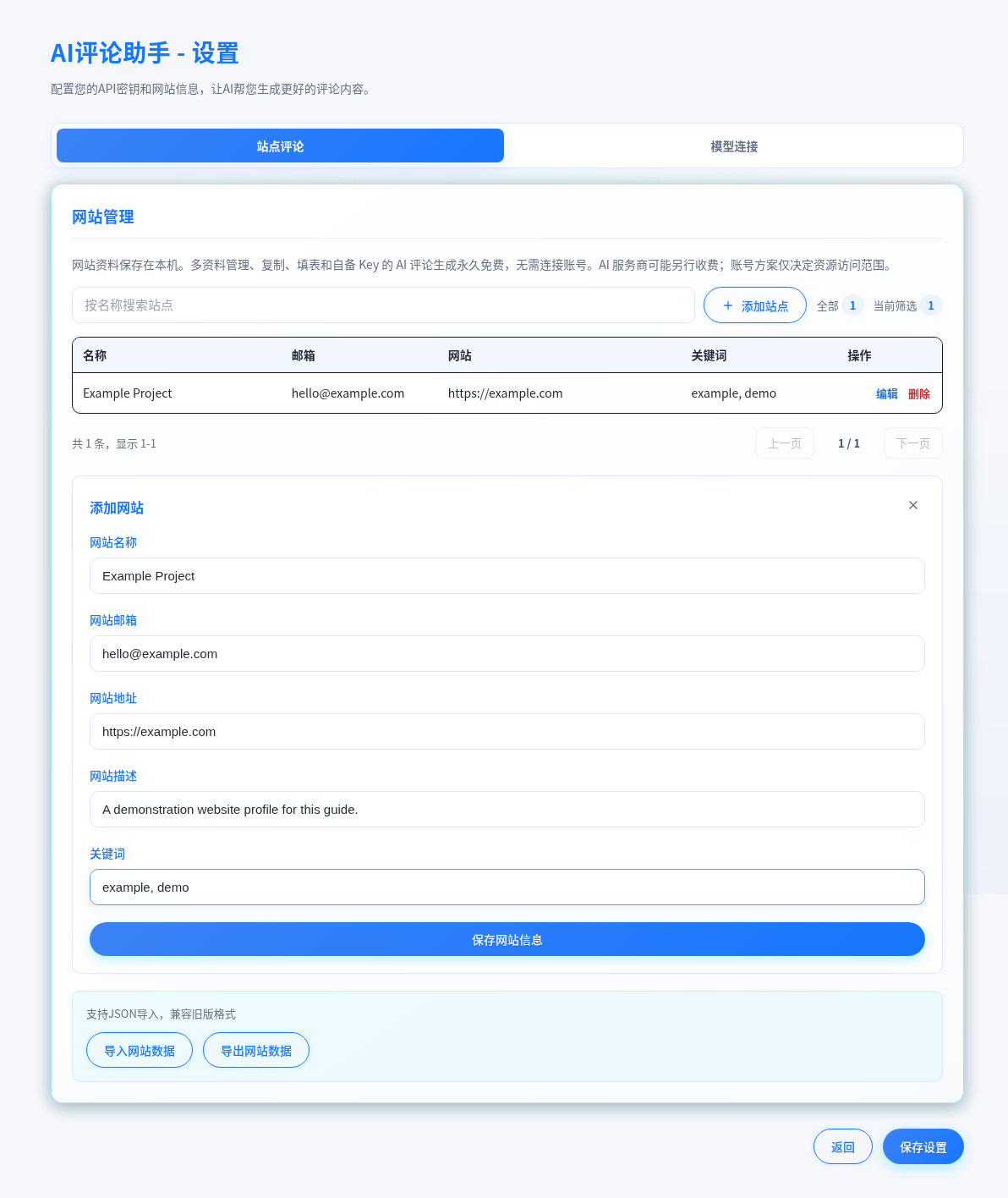
- 1Export website data from Site comments to download backlink-helper-profiles.json. It may contain emails; keep it private and back up before reinstalling or upgrading.
- 2Export existing profiles before importing. Select a valid JSON file using Import website data. Import replaces the current profiles, rather than appending. Verify counts, names, URLs and sidebar switching afterward.
- 3Prefer files exported by the extension. Supported input is an array or an object with a sites/websites array; profile fields must be strings. Correct invalid JSON rather than importing untrusted configurations.
08
AI: your key, model and connection test
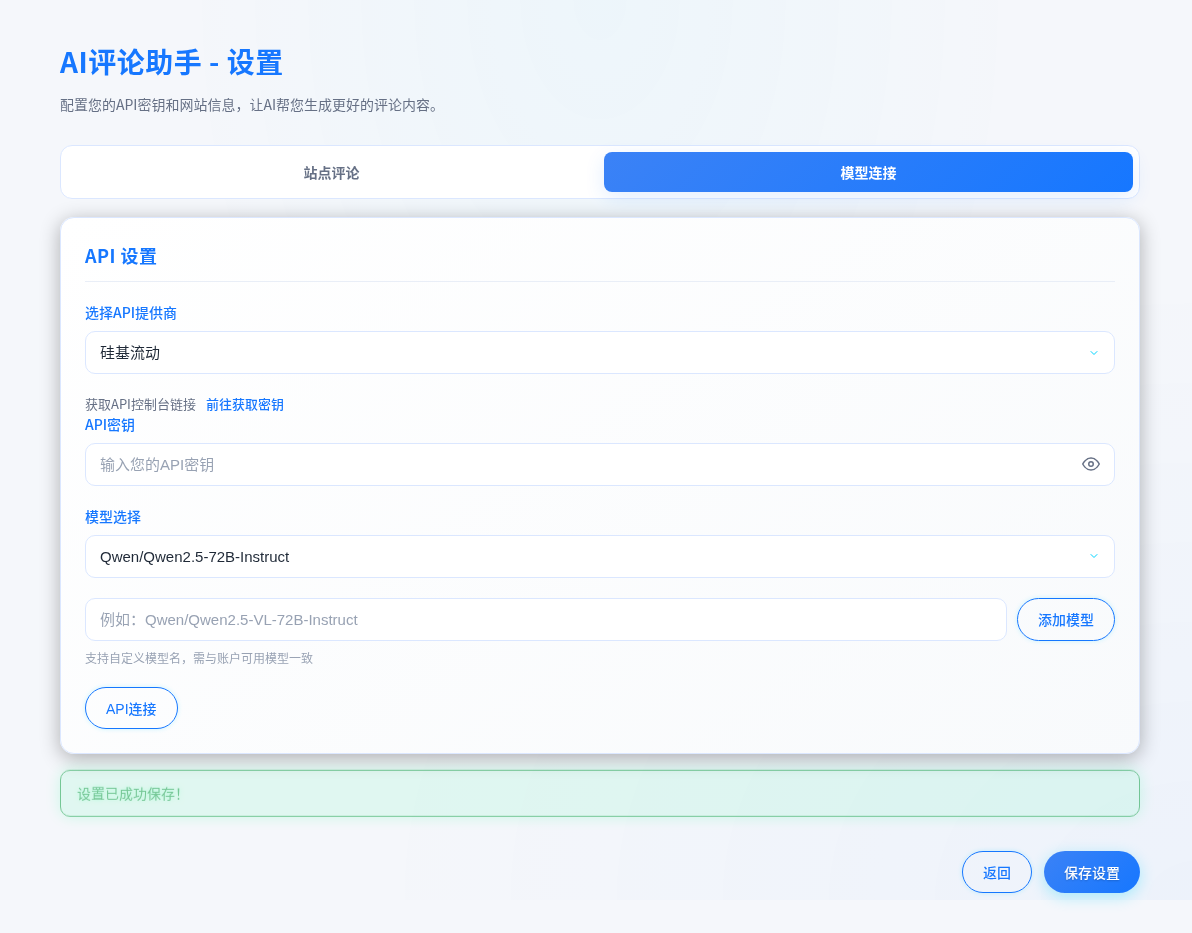
- 1Open Settings → Model connection. Choose the provider that issued your key: SiliconFlow, OpenAI, DeepSeek, Zhipu, Zhipu Coding or OpenRouter. Create a key in its official console and check balance and model access.
- 2Select a model or add an exact model ID supported by that provider. Adding a model does not add a new provider or API endpoint. v1.2.5 has no standalone Gemini or custom API URL input.
- 3Click Test connection, then Save settings at the bottom. The test checks the models endpoint only, not generation permission for your selected model. Verify with one real article draft.
- 4Keys are stored locally in this browser extension; AI requests go to your chosen provider. Page excerpts and relevant profile details are sent for drafting. Avoid confidential pages and never share key screenshots or use a key as a pairing code.
10
Choosing a link format
- 1HTML example: <a href="https://example.com">AI video generator</a>. Use only where HTML links are allowed; the anchor must be a current profile keyword candidate.
- 2Markdown: [AI video generator](https://example.com). BBCode: [url=https://example.com]AI video generator[/url]. Both anchors must use profile keywords; profile name is the explicit fallback only when keywords are empty.
- 3Plain URL: https://example.com. A bare URL has no separate anchor. Check site rules or preview first; if markup displays literally, use a supported format or plain URL.
11
Edit, copy and recover comment output
- 1Comment output is editable: revise an AI draft or write manually without AI. Check tone, relevance, spelling and links, then Copy comment into the destination editor.
- 2Per-field Copy copies that profile value; Copy all copies profile fields, not the generated comment. If clipboard permission fails, select the text and use the system copy shortcut.
- 3Existing output is retained on generation failure, and generated text remains when filling fails. After editing output, copy it to the page again; sidebar edits do not automatically update previously filled fields.
12
Assisted filling and human submission
- 1v1.2.5 attempts to fill comment, name, email and website after AI generation. There is no separate Fill current page button. Without AI, copy profile fields and your handwritten comment manually.
- 2For rich editors, frames, login walls or collapsed comments, first open the form and click its field. Fall back to Copy comment if filling fails. Refresh old tabs after an extension upgrade.
- 3Inspect actual page fields, formatting, required inputs and site rules. Handle login, CAPTCHA, consent and final submission yourself. The extension does not bypass moderation or guarantee indexing, dofollow links or publication.
13
Account pairing versus website entitlements
- 1To sync opportunities, click Connect website account. The extension opens a one-time pairing page. Sign in, verify the matching code and confirm. Return to check your account and plan. Never approve an unsolicited pairing.
- 2Step 1: Click Connect website account in the extension. Your browser opens a one-time confirmation page on backlinkhelper.org, while the extension shows a pairing code and Waiting for confirmation. The code is valid for 10 minutes. It is neither an AI API key nor a legacy license code.
- 3Step 2: Sign in on the website with the account you want to connect. For Pro access, use the same account that purchased Pro. Check that the one-time code on the website matches the extension, then confirm the connection. Only approve a request you just initiated. The extension never receives or stores your website password.
- 4Step 3: After the website confirms the connection, return to the extension and wait for the pairing status to come back automatically. The extension polls for confirmation, then displays the connected account, Free / Pro and accessible resource count, and loads resources. If the code expires, the request is rejected or pairing never finishes, start again from the extension instead of reusing the old code.
- 5Free syncs the first 100 backlinks in the fixed Blog-first order; Pro syncs all available resources. The website and extension use the same order in their default, unfiltered resource views. Search, filters or explicit website sorting can produce different visible lists. Clear conditions and restore the website default sort before comparing order. Free search never unlocks record 101 or later outside the fixed accessible set.
- 6The first 100 keyword records and first 100 AI Sites are separate website entitlements, not extension profile, comment or AI limits. Local tools stay free on Free, Pro or while disconnected.
- 7Disconnect revokes this extension connection while local profiles and bring-your-own-key tools remain usable. Reconnect when pairing expires or syncing becomes unauthorized. v1.2.5 has no bundled resource database and does not use legacy license codes.
14
Website sync vs. live local sync: what moves where
- 1Website to extension: After pairing, the extension reads your account plan, accessible resource count and backlink resources, including rank, domain, full submission URL and notes. This sync retrieves resources you can access. It does not publish your own website profiles to the website or automatically submit comments to third parties.
- 2Settings to sidebar and back: Within the same browser profile and extension ID, saving website profiles updates the settings list and sidebar through local storage change events. Selection stays associated with the profile ID and falls back to an available profile after deletion. Live sync here means local profile updates, not real-time server push for resource lists.
- 3Your name, email, URL, description, keywords and AI API key stay in local extension storage. Account pairing and resource sync do not upload them to the Backlink Helper website. AI generation is a separate data flow: the selected profile and page summary go to your chosen AI provider, with your key used for that provider's authentication. This is not a cloud profile backup.
- 4Multiple devices: Install and pair each browser separately with the same website account to access its resource entitlement. Local profiles do not automatically appear on another device. Export backlink-helper-profiles.json on the old device, back up the new device before importing (replacement, not merging), then separately configure the AI provider, model and key. Profile export does not include model connection settings, AI keys or account connection tokens. Never put keys in profile fields or publish the JSON.
15
Refresh resources, update Pro access and disconnect
- 1Refresh resources: A successful connection loads the list. Clicking Backlinks, entering or clearing a search, and clicking Previous / Next page each request resources again. To retry the current list, switch to Comments and back to Backlinks. v1.2.5 has no separate Sync / Refresh resources button and no continuous server push. Newly added website resources appear on the next list request, not instantly.
- 2After purchasing, renewing or canceling Pro, first check the plan actually in effect on the website account page, then re-enter Backlinks in the extension to request resources. The account badge and resource list refresh separately. If the badge is stale, reload the sidebar page to recheck the account: close and reopen it; if the browser retains the old panel, reload the extension from the extensions manager and open it again. If access still differs, verify the account, disconnect and pair again. Reinstallation is unnecessary.
- 3Expired or revoked token: If an account or resource request returns 401 / 403, the extension clears its local connection token, shows Connection expired and empties the resource view. Click Connect website account to pair again. Local profiles and AI keys are not deleted. A network error does not necessarily mean an expired token; check connectivity and re-enter Backlinks to retry.
- 4Website sign-out is not extension disconnection. Signing out only clears the website session. A paired extension uses an independent token and does not automatically sign out. On a shared computer, sign out of the website AND click Disconnect in the extension. Do not assume website sign-out also disconnected the extension.
- 5Click Disconnect in the extension and confirm to request revocation of this token and clear the local connection, resource view and selection. This does not delete local profiles or keys, cancel Pro, or sign out of the website. Even if a network error prevents the revocation request, the local token is still cleared, but that does not prove server-side revocation succeeded; the interface shows the error. Free local tools remain usable, and you can pair again later.
16
Search, paginate, select and open opportunities
- 1After connecting, open Backlinks and wait for the list. The current server actually matches searches by domain. Even if the input hints at URLs or types, do not assume those fields are searchable. Check the total and page indicator, then use Previous / Next page. The full URL displayed in the list is the submission destination that opens, not a constructed homepage. Hover to inspect the full address.
- 2Select rows or choose Select current list; this is not a select-all across pages. Recheck selection after search/pagination, and clear it when needed. Open a single row or use Open selected links.
- 3Range opening uses a zero-based offset in the current list, defaults to 5 and opens at most 20 per action. Start small and inspect relevance, comments and login requirements. Batch opening is not batch submission.
17
A complete beginner workflow
- 1Install and pin → add a profile and export a backup → test copying a handwritten comment → optionally configure and save AI → optionally pair and browse opportunities.
- 2Open a relevant article → read its rules and content → select your profile → draft an unlinked or permitted linked comment → review/edit output → check actual form fields → submit manually.
- 3After submitting, check the success or moderation message and record the destination URL/status. Submission is not proof of public publication or search engine indexing.
18
FAQ and troubleshooting
- 1Cannot find manifest.json? Extract the ZIP and choose its actual containing folder. Sidebar not opening? Pin/enable the extension, refresh a normal webpage and reload the extension.
- 2AI 401/403: check key, provider and permissions. 429: check limits or balance. Unknown model: use the exact provider model ID. A passing connection test does not guarantee chat/model access.
- 3Profiles not syncing? Confirm the same browser profile and extension ID, save, then reselect. Use JSON for another browser; back up first because importing replaces existing profiles.
- 4Empty or different resources? Check the account and network, clear the domain search, switch to Comments and back to Backlinks. There is no bundled list while disconnected, but local tools remain free. Pro not updated? Verify the purchasing account and effective website entitlement, reload the sidebar to check the account, then disconnect and pair again if needed. Search-result counts are not your plan limit.
- 5Why are my profiles or key missing on another computer after sign-in? The account provides website resource access, not local-profile backup. Transfer profiles with JSON import/export, configure the key separately and pair that browser. Still connected after website sign-out? That is expected with an independent token; explicitly disconnect inside the extension.
- 6Output exists but the page is unchanged? Filling failed, not generation. Copy/paste manually. Links appear as raw code? Change to a supported format and preview before submitting.
Source and version verification
Based on the Feishu Backlink Helper Chrome extension instructions, retrieved 2026-09-06 and checked against v1.2.5 source. Current real screenshots replace legacy-entitlement images. The extension UI uses Chinese button labels.
Download and get started · v1.2.5
Content comments and linked comments